Call Sharing
Share a call with anyone using a public link. The link opens a page with the recording, the transcript and the call details, and the person you send it to does not need a Tonet login. Send it to a colleague who needs to hear how a customer was handled, to a client as proof of a conversation, or to a supervisor for coaching.
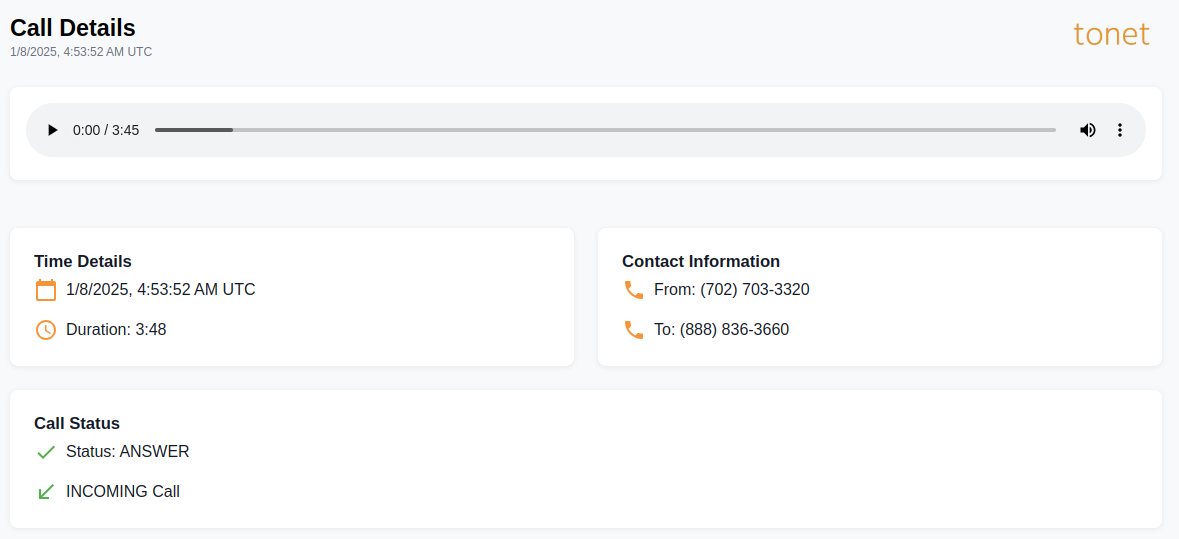
The shared page includes:
- Recording player - The full call recording with play, pause, seek and volume
- Transcript - The AI transcript of the call, split by speaker. It is the same interactive transcript as in Call Details: the current words are highlighted while the recording plays, and clicking anywhere in the transcript jumps the audio to that moment. Only shown for calls that were transcribed.
- Time Details - Date, time (UTC) and duration
- Contact Information - From and To phone numbers
- Call Status - Whether the call was answered, and whether it was incoming or outgoing
The page shows only that one call and nothing on it leads into your dashboard, so it is safe to send outside your company.
Sharing One Call
- Go to Call History
- Find the call you want to share
- Click the share icon on that call's row. The icon is grey if the call has no public link yet, or orange if one already exists.
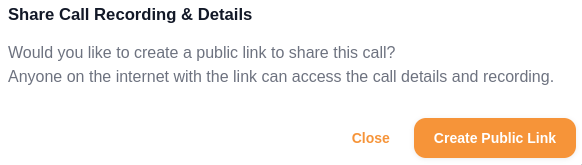
- Click Create Public Link
- The link appears in the Public Link field. Click Copy Public Link to copy it to your clipboard.
- Send the link to anyone. They can open the call details, read the transcript and listen to the recording without logging in.
Sharing Many Calls at Once
Owners, managers and admins can create links in bulk from Call History:
- Select the calls, either with the row checkboxes or with the Select button (this page, everything matching the current filter, or everything this month)
- Click Create public links
Every selected call gets a link. Calls that already had one keep it, so you can safely run this over calls you shared before. The share icon on each row turns orange.
To hand the links to someone as a list, use Export CSV with Create public links for the exported calls ticked: the spreadsheet then has a Public link column with a link for every exported call.
A Link for Every New Call
If you always want links available, for example because you export your call history every month for a client, turn on Public link for every new call in the Call History Settings. From then on each call gets a link the moment it is logged, and every export carries it.
This only applies to new calls. Give older calls a link by selecting them and clicking Create public links.
Managing Shared Links
Once a call has a public link, clicking its share icon opens the dialog with the existing link:
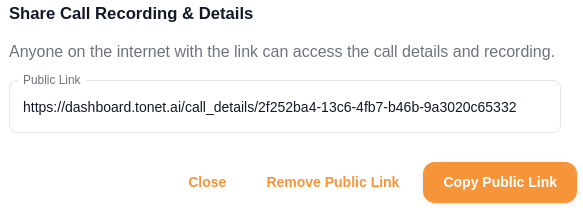
- Copy Public Link - Copy the URL to share it again
- Remove Public Link - Deactivates the link immediately. Anyone who had it can no longer open the call. The share icon on the row turns back to grey.
To remove links from many calls at once, select the calls in Call History and click Remove N links. The count tells you how many of the selected calls currently have a link.
If you remove a link and need to share the call again later, click Create Public Link to generate a new URL. The old link stays permanently deactivated.
Each link uses a unique, randomly generated ID that can't be guessed, and a call is only reachable while its link exists. Even so, a public link is public: anyone who gets hold of it can open the call, and links stay in exported spreadsheets and forwarded emails. Remove links you no longer need, and keep Public link for every new call off if your recordings should stay behind the login.
Related
- Call History - Selecting calls, exporting to CSV and the Call History Settings
- Call Details - The full call page inside your dashboard, with quality metrics and Report Call