Calendar
The Calendar lets you override your normal call routing on specific dates. Use it for holidays, vacations, company events, or any day where calls should go somewhere different than usual. For example, route calls to a holiday greeting during Christmas week, or send everything to voicemail during your company retreat.
Calendar entries take the highest priority in call routing - they override both schedules and default phone destinations. See Call Routing Priority.
Go to Manage > Calendar to manage your calendar events.
Calendar Views
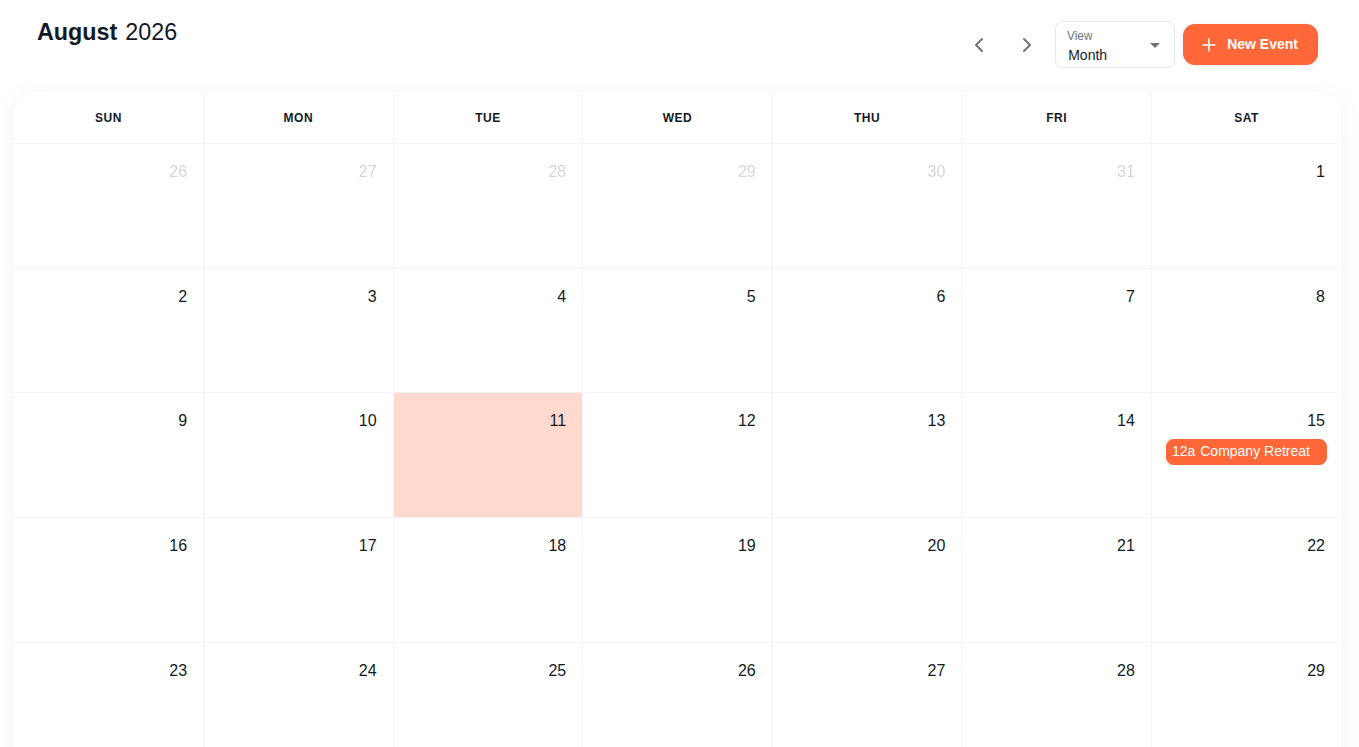
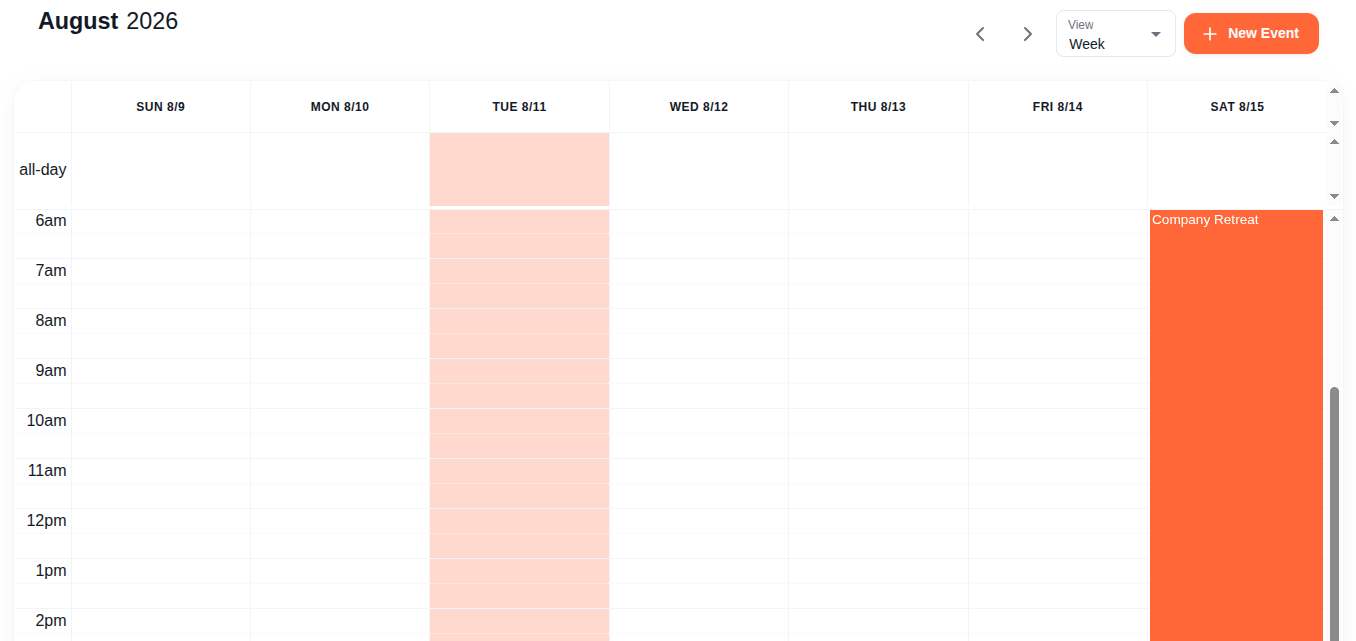
Use the View dropdown in the toolbar to switch between four views. Navigate between months using the left/right arrows.
Month
Full month grid with events shown as blocks on their dates.
Week
Detailed week view with time slots.
Agenda
A list of upcoming events.

Adding a Calendar Event
Click + New Event in the toolbar to open the event dialog.
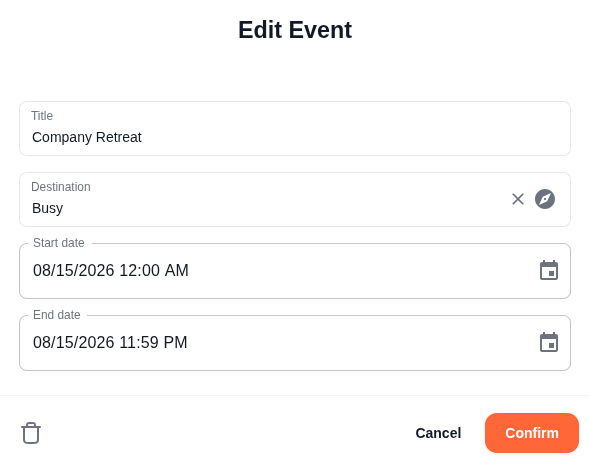
Fill in the following fields:
- Title - A name for this event (e.g. "Christmas Week", "Labor Day", "Company Retreat")
- Destination - Where calls should go during this event. Opens the route picker with all available options: Users, Groups, Auto Attendants, Voicemail, Phone Number, and Features (like Busy tone).
- Start date - When this event begins (date and time picker)
- End date - When this event ends (date and time picker)
Click Confirm to create the event. It appears on the calendar immediately.
You can also click directly on a date in the calendar to create an event with that date pre-filled.
Editing a Calendar Event
Click on any event in the calendar to open it for editing. The same dialog opens with the current values pre-filled. Make your changes and click Confirm to update.
To delete an event, click the trash icon in the bottom-left corner of the edit dialog.
Example: Holiday Calendar
Here's how to set up holiday routing for a plumbing company:
- Create an auto attendant called "Holiday Greeting" with a recording: "Thank you for calling Summit Plumbing. We're currently closed for the holiday and will return on Monday. For emergencies, press 0."
- Go to Calendar and click + New Event
- Create entries for each holiday:
| Event | Start | End | Destination |
|---|---|---|---|
| Labor Day | Sep 7, 12:00 AM | Sep 7, 11:59 PM | Busy |
| Thanksgiving | Nov 26, 12:00 AM | Nov 27, 11:59 PM | Busy |
| Christmas Week | Dec 24, 12:00 AM | Dec 26, 11:59 PM | Holiday Greeting (IVR) |
| Company Retreat | Aug 15, 12:00 AM | Aug 15, 11:59 PM | Busy |
During these dates, all calls to phone numbers with a calendar assigned are routed to the specified destination, regardless of their schedule or default routing.
Busy vs. IVR - Setting the destination to "Busy" plays a busy tone and disconnects. For a better caller experience, create an Auto Attendant with a holiday greeting so callers know you're closed, when you'll be back, and what to do in an emergency.
Assigning the Calendar to a Phone Number
Calendar events only affect phone numbers that have a calendar assigned:
- Go to Phones and click the number you want to configure
- In the Configure tab, set the Calendar dropdown to your calendar
- On any date that matches a calendar event, calls to that number are routed to the event's destination
Routing Priority: Calendar has the highest priority. If today matches a calendar event, that destination is always used - even if the phone number also has a schedule configured. The priority order is: Calendar > Schedule > Go To (default). See Call Routing Priority for full details.