Schedule
Schedules let you route calls differently based on the time of day and day of the week. During business hours, calls go to your team. After hours, they go to voicemail, an after-hours message, or an auto attendant. You can create as many schedules as you need and assign them to any phone number.
Go to Manage > Schedule to manage your schedules.
Views
The Schedule page has two views, toggled with the View dropdown in the toolbar:
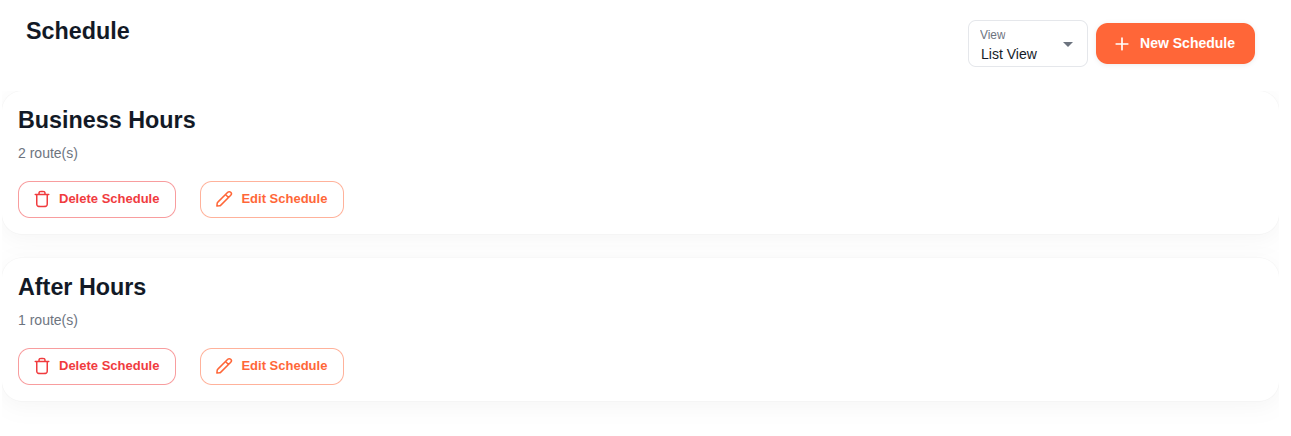
List View
Shows each schedule as a card with:
- Name - The schedule name (click to open it in Week View)
- Route count - How many routes are configured
- Edit Schedule - Opens the schedule editor
- Delete Schedule - Removes the schedule after confirmation
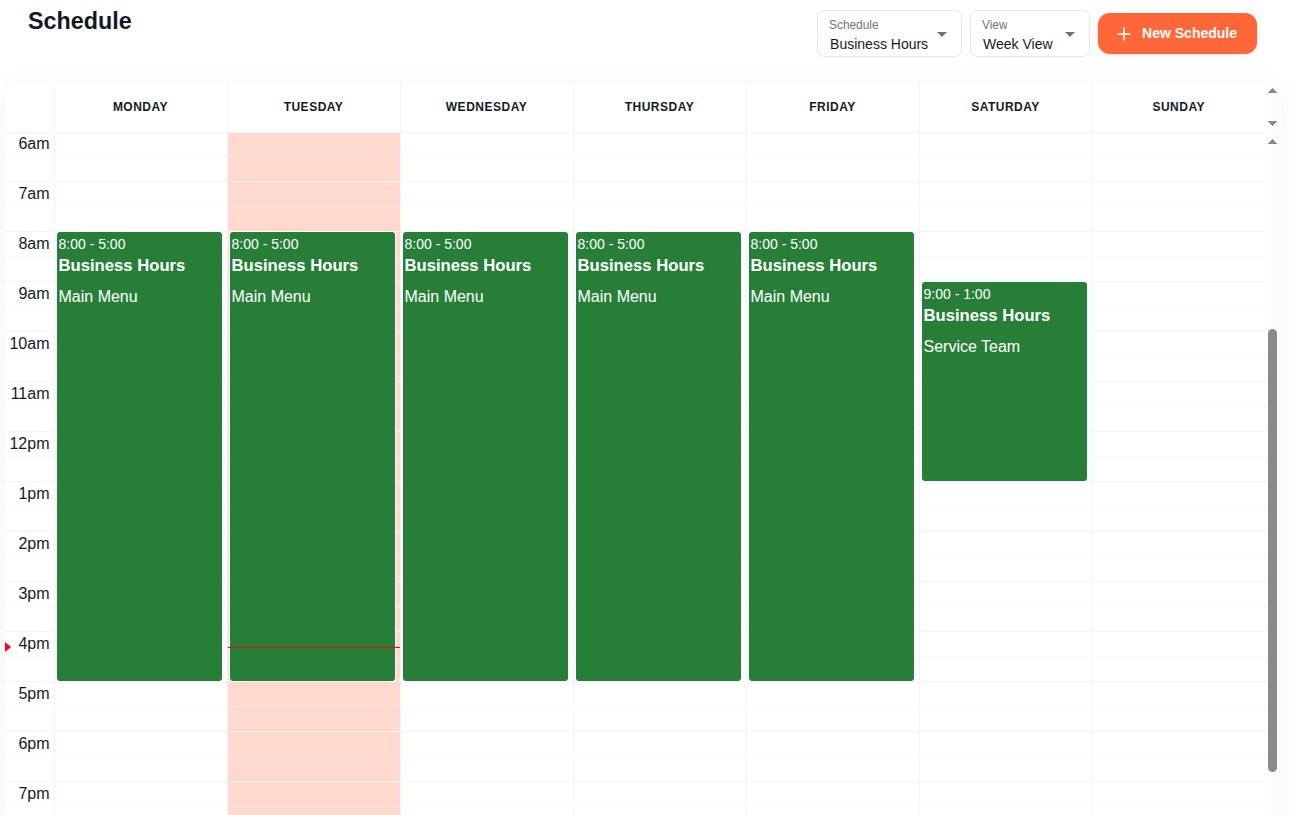
Week View
A visual calendar grid showing your routes mapped across the week. Each block shows the time range, schedule name, and destination. Use the Schedule dropdown to switch between your schedules.
Click on any block in the calendar to open it in the editor.
Creating a Schedule
Click New Schedule in the toolbar. Enter a name (e.g. "Business Hours", "Weekend", "After Hours") and click Confirm. This creates the schedule and takes you to the editor where you add routes.
Editing a Schedule
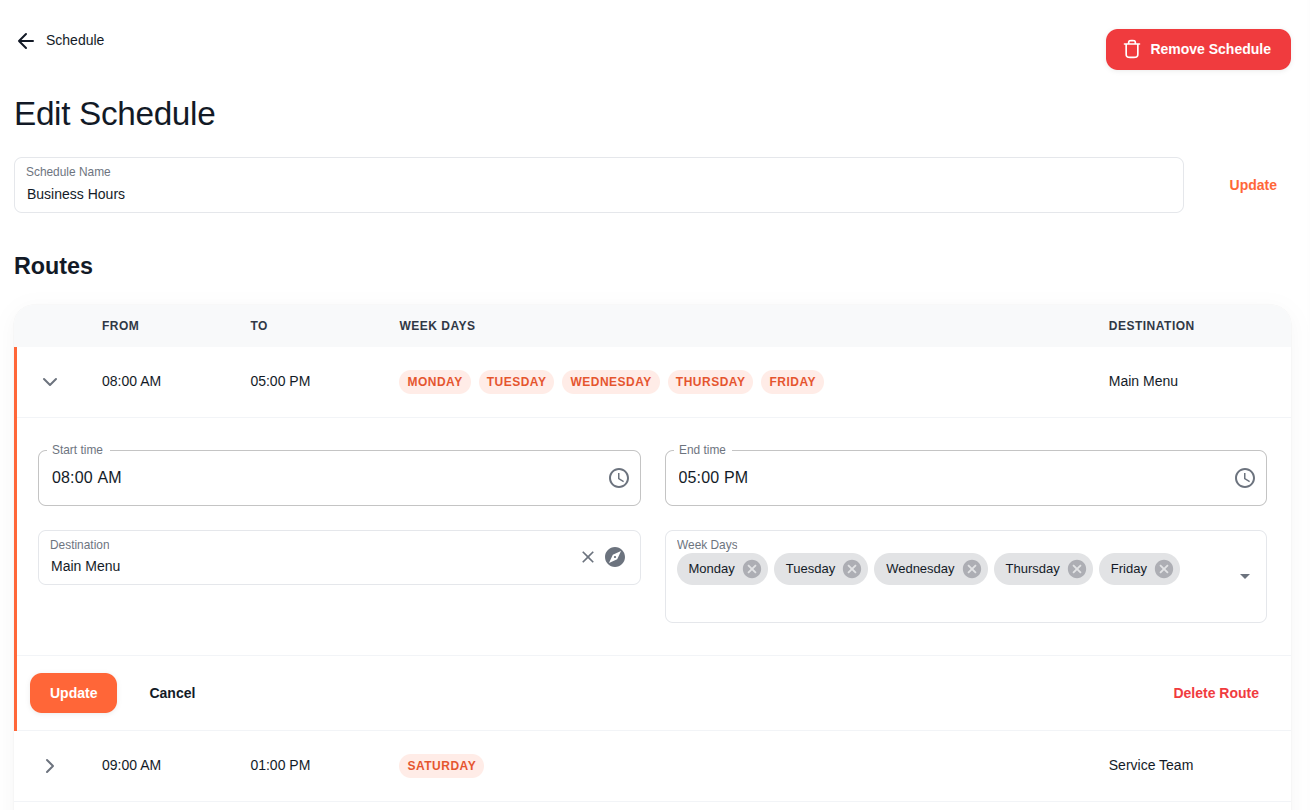
The schedule editor shows the schedule name at the top (editable) and a routes table below.
Routes Table
The routes table shows all routes for this schedule:
| Column | Description |
|---|---|
| From | Start time for this route |
| To | End time for this route |
| Week Days | Which days this route is active (shown as colored pills) |
| Destination | Where calls are routed during this time window |
Click the arrow on any row to expand it and edit the route.
Route Editor
When you expand a route, the editor shows four fields:
- Start time - When this route activates (time picker)
- End time - When this route deactivates (time picker)
- Destination - Where to send calls during this time. Opens the route picker with all available destinations: Users, Groups, Auto Attendants, Voicemail, Phone Number, and Features.
- Week Days - Multi-select dropdown for which days of the week this route applies. Select as many days as you need.
Click Update to save the route, or Cancel to discard changes. Click Delete Route to remove this route from the schedule.
Adding Routes
Click Add Route below the table to add a new route. The route is created with default values and the editor opens automatically so you can set the time range, days, and destination.
A schedule can have multiple routes for different time windows. For example:
- Route 1: Monday-Friday, 9:00 AM - 5:00 PM, destination: Sales group
- Route 2: Monday-Friday, 5:00 PM - 9:00 PM, destination: After Hours auto attendant
- Route 3: Saturday-Sunday, 10:00 AM - 2:00 PM, destination: Weekend voicemail
Example: Business Hours Schedule
Here's how to set up a typical business hours schedule for a plumbing company:
- Click New Schedule and name it "Business Hours"
- Click Add Route and configure:
- Start time: 8:00 AM
- End time: 5:00 PM
- Destination: Main Menu (your auto attendant)
- Week Days: Monday, Tuesday, Wednesday, Thursday, Friday
- Click Update to save
- Click Add Route again for after-hours:
- Start time: 5:00 PM
- End time: 8:00 AM
- Destination: Voicemail (or an after-hours greeting)
- Week Days: Monday, Tuesday, Wednesday, Thursday, Friday
- Click Update to save
- Go to Phones, select your main number, and set its Schedule to "Business Hours"
Now calls during business hours reach your auto attendant, and after-hours calls go to voicemail.
Assigning a Schedule to a Phone Number
After creating a schedule, assign it to one or more phone numbers:
- Go to Phones and click the number you want to configure
- In the Configure tab, set the Schedule dropdown to your schedule
- The schedule's routes now control where calls to that number are directed, based on the current time and day
Routing Priority: When a phone number has both a Calendar entry and a Schedule configured, the Calendar takes priority. If today matches a calendar entry (like a holiday), that destination is used. Otherwise, the schedule's routes are checked. If no schedule route matches the current time, the phone's default Go To destination is used. See Call Routing Priority for the full order.
Deleting a Schedule
Click Remove Schedule (in the editor) or Delete Schedule (in the list view). A confirmation dialog asks you to confirm before it's permanently removed.
Before deleting a schedule, check if any phone numbers are using it. Removing a schedule that's still assigned to a phone number means those calls will fall through to the phone's default Go To destination instead.